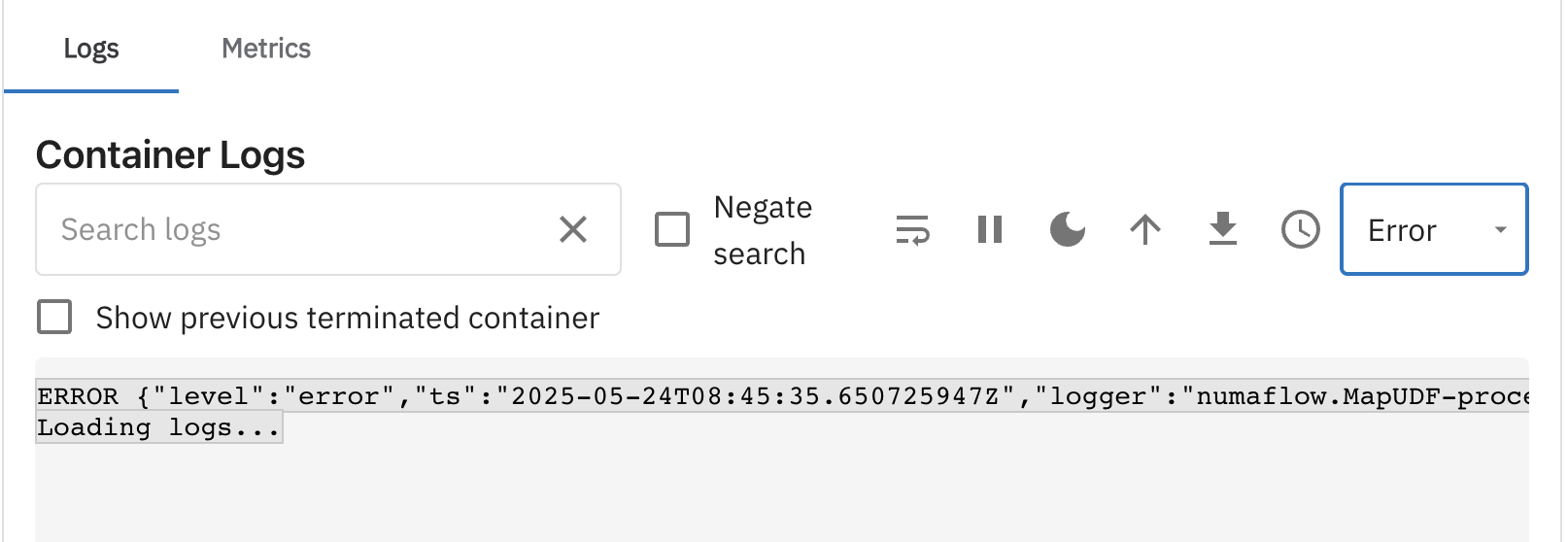
Logs View
The Logs View allows users to inspect the logs of a specific container within a pod of a vertex. This guide will walk you through the Logs tab and its various features.
Navigating to the Logs Tab
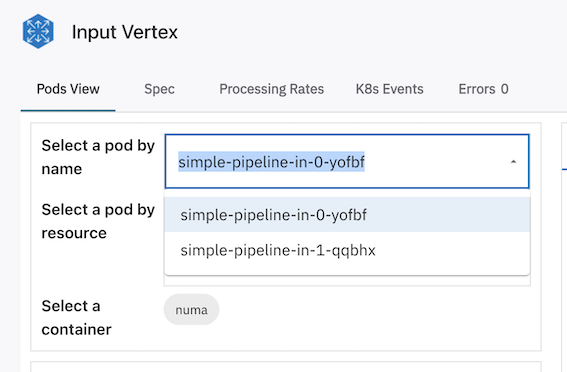
Select a Pod
Navigate to the Pods View tab after selecting the vertex and select a pod by name from the Select a Pod by Name dropdown.
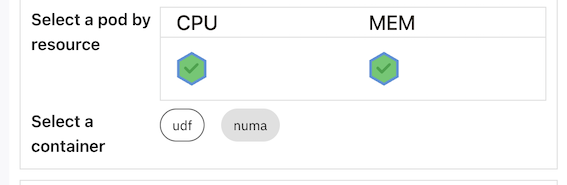
Select a Container
Choose a container from the Select a Container section.
View Logs
Open the Logs Tab on the right to view the container logs.
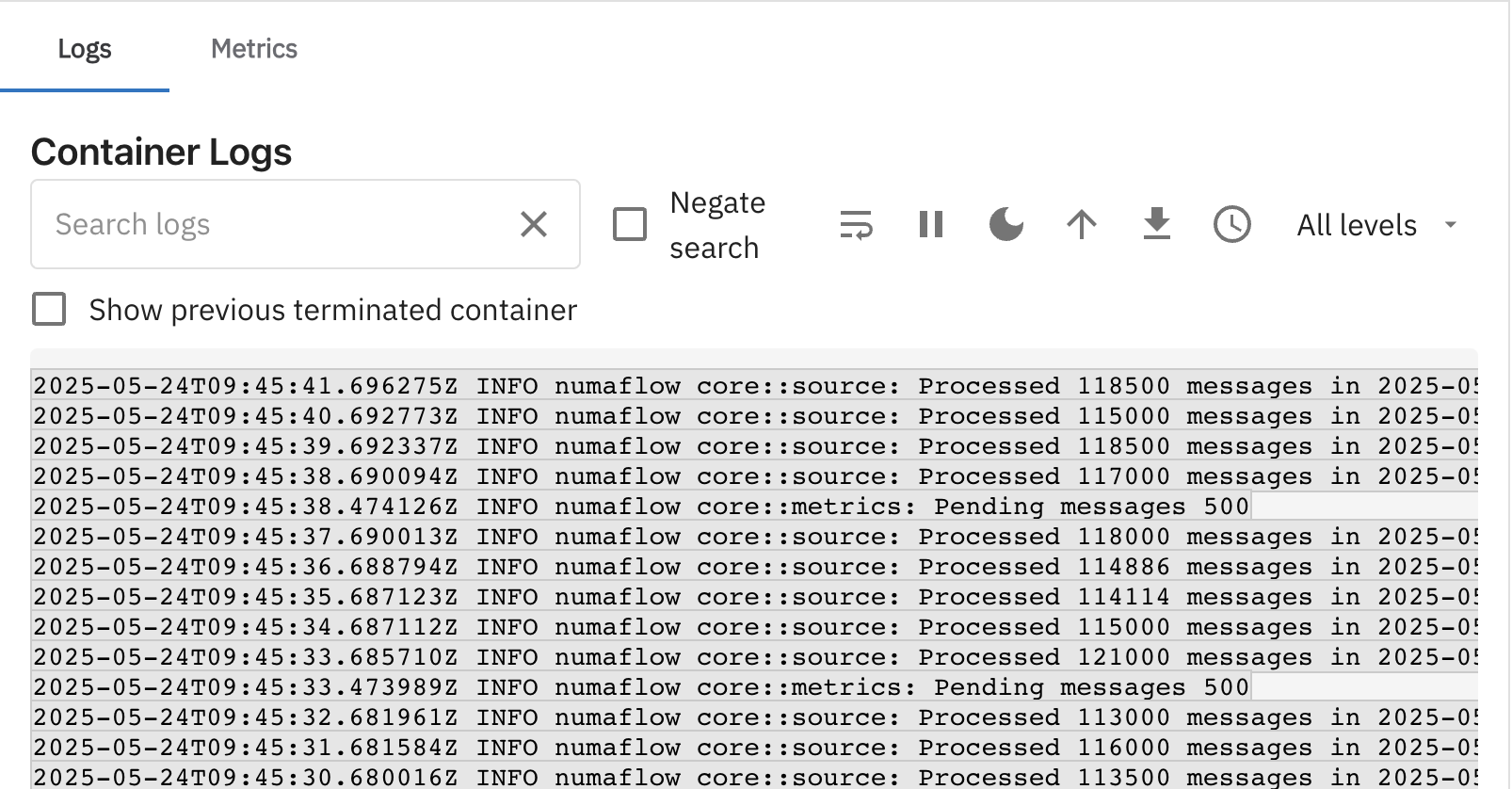
Features
1. Previous Terminated Container Logs
- Enable the checkbox to view logs from previously terminated containers.
- This is particularly useful for debugging issues.
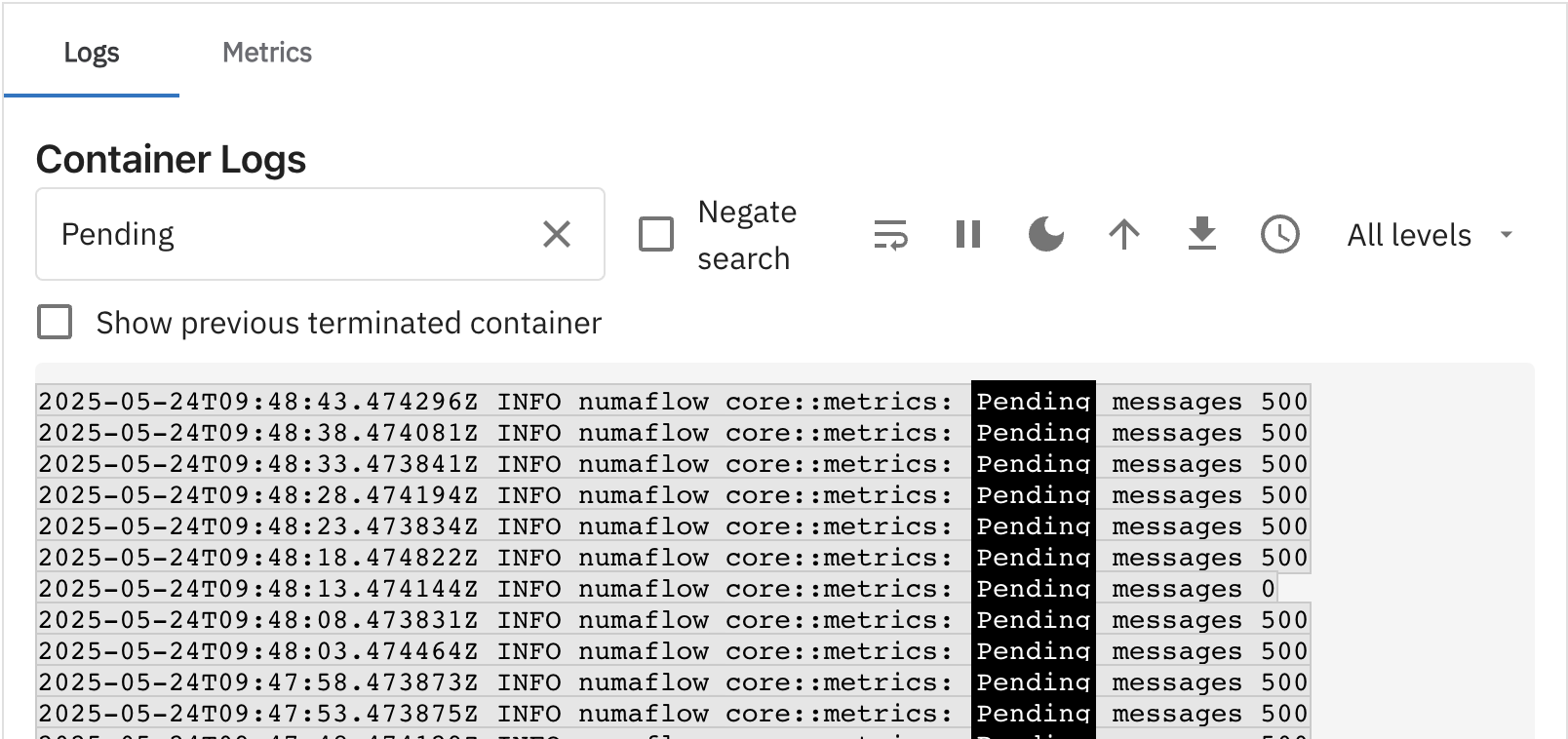
2. Search Logs
- Filter logs by typing keywords in the Search Logs box.
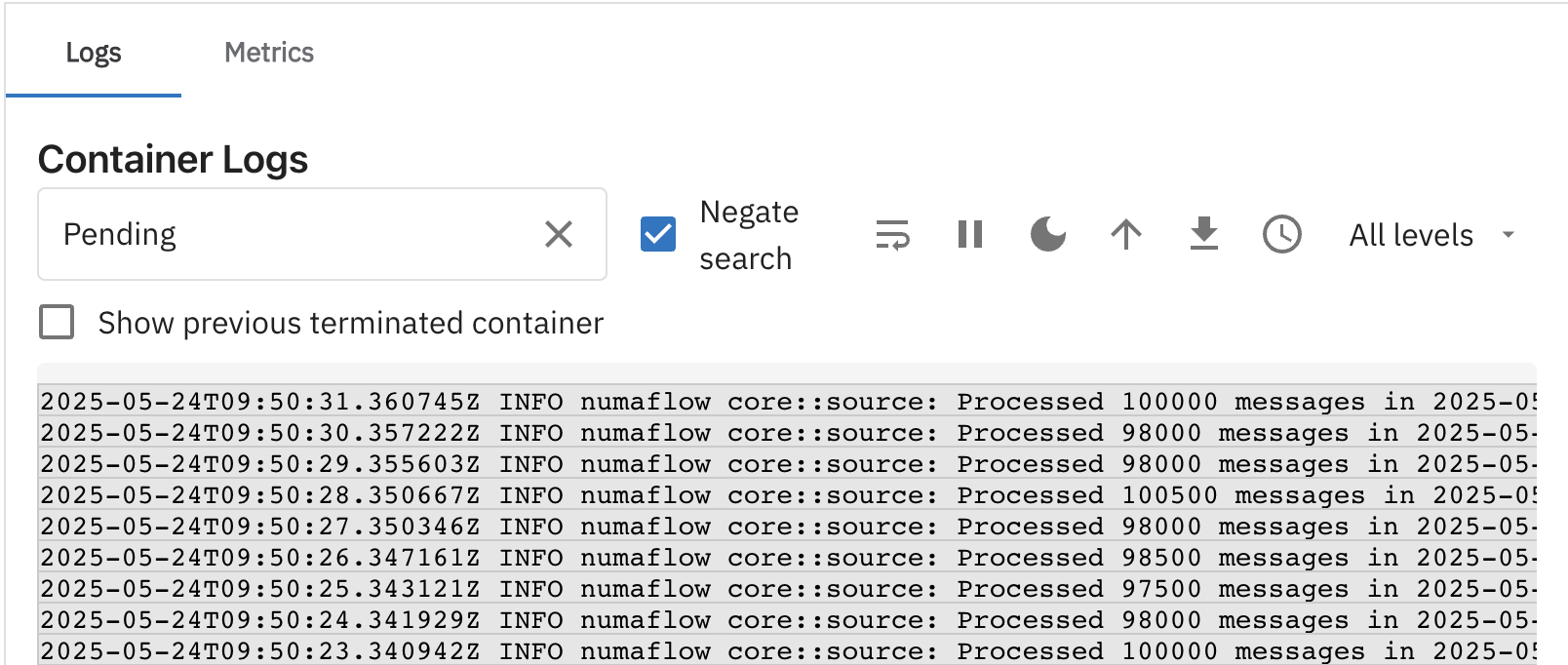
3. Negate Search
- Enable the Negate Search option to exclude logs matching the search keywords from the view.
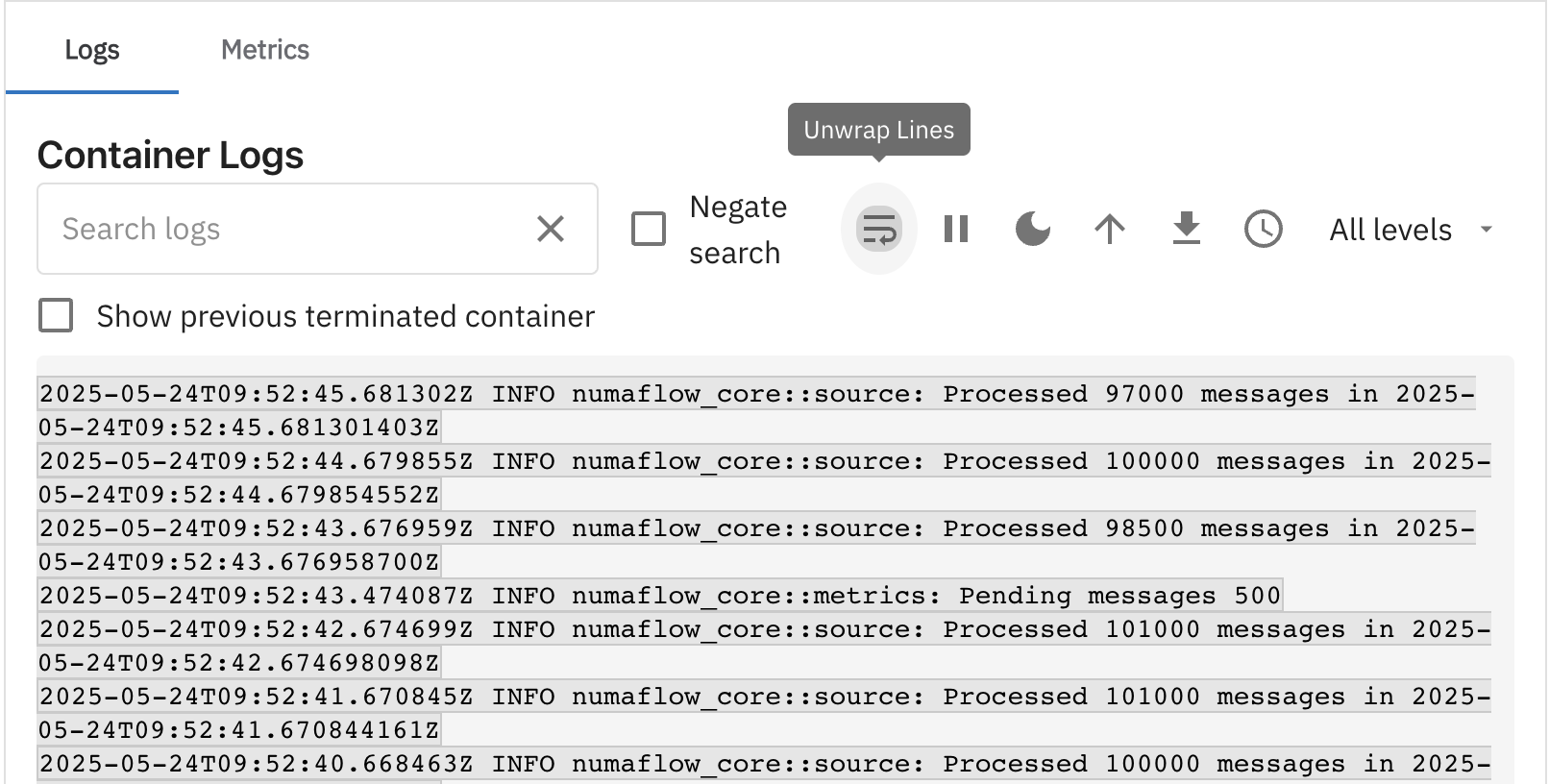
4. Wrap Lines
- Use the Wrap Lines feature to avoid horizontal scrolling for long log lines, improving readability.
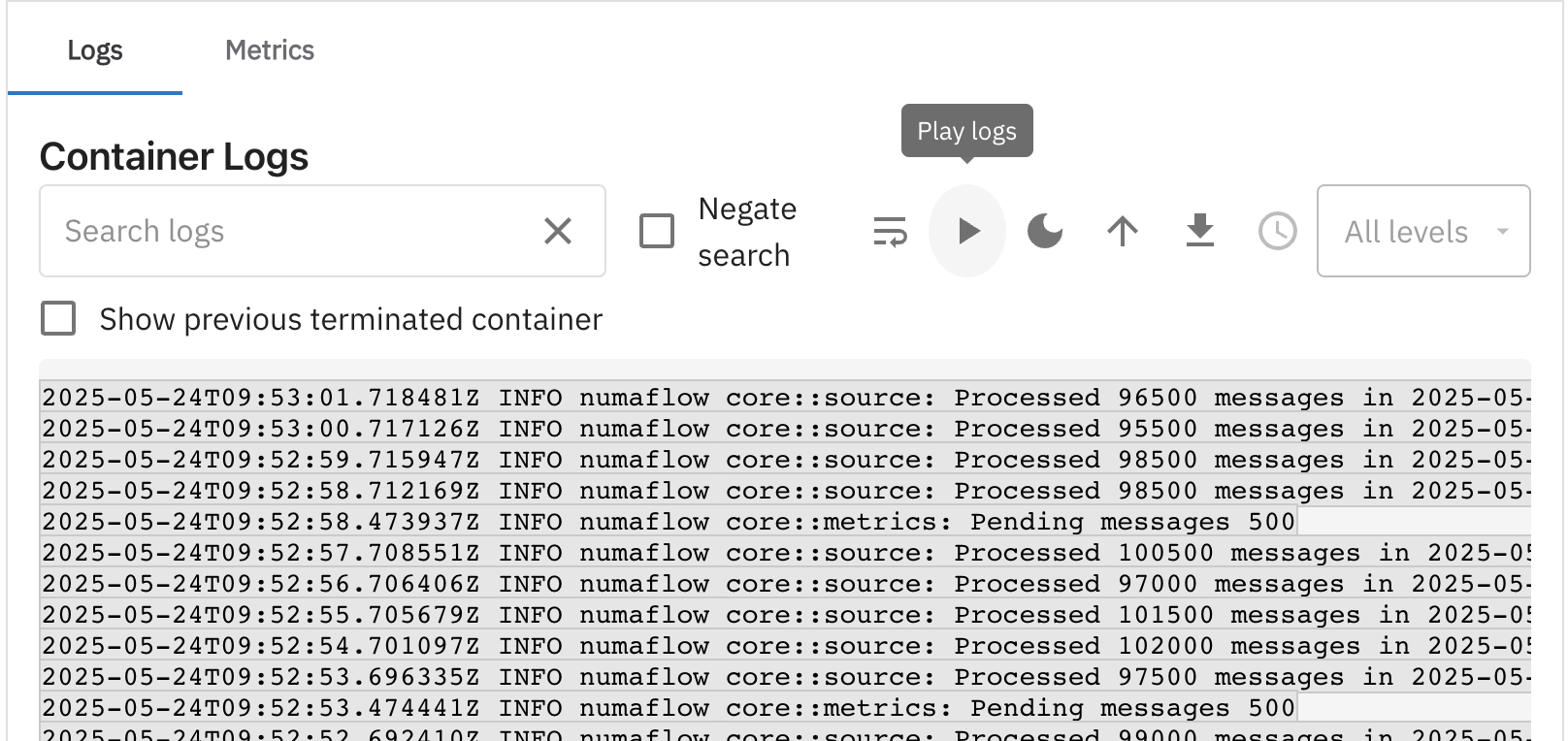
5. Pause Logs
- Pause the log stream to inspect logs when there is a high volume of data.
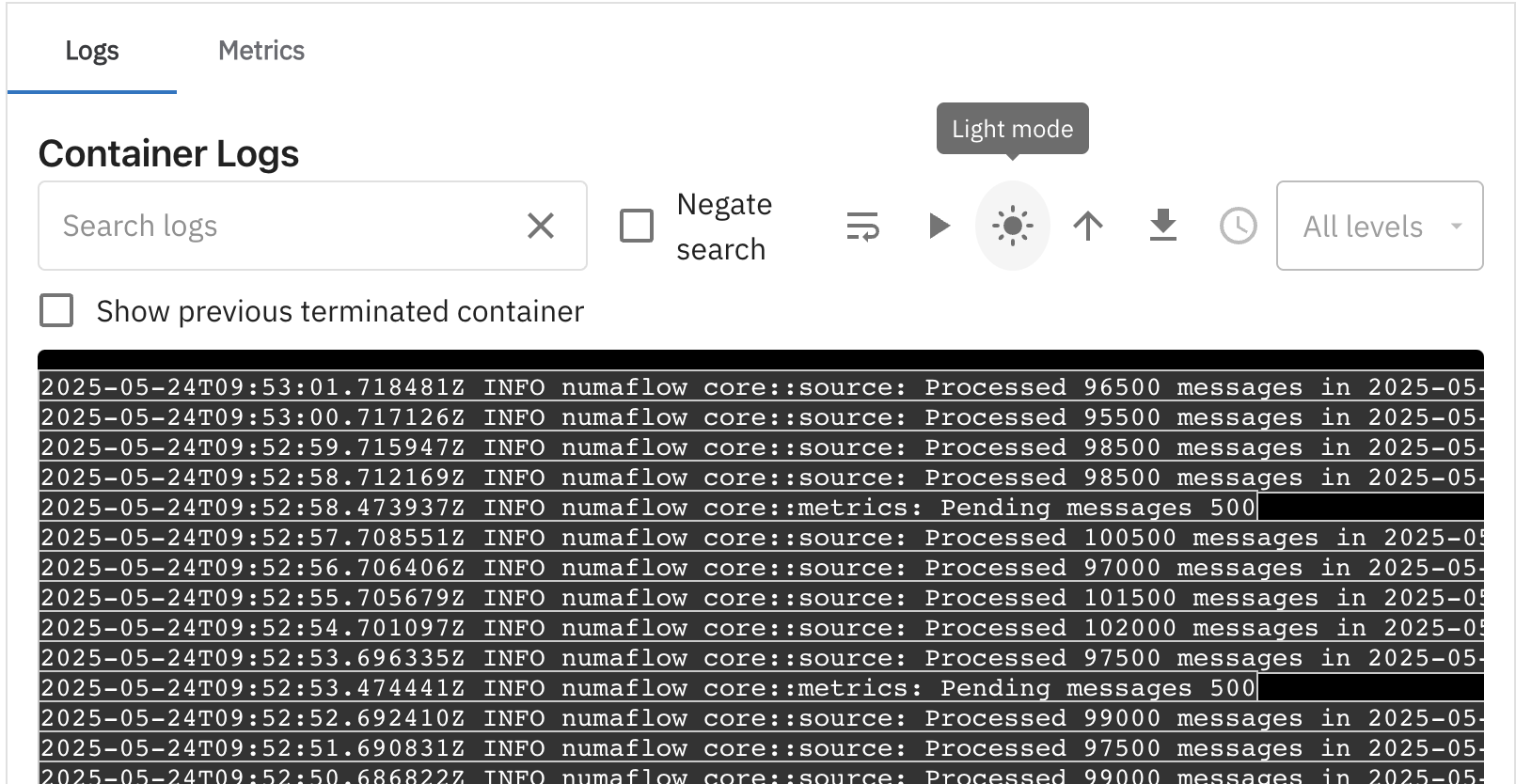
6. Dark Mode
- Toggle between Dark Mode and Light Mode for better visibility based on your preference.
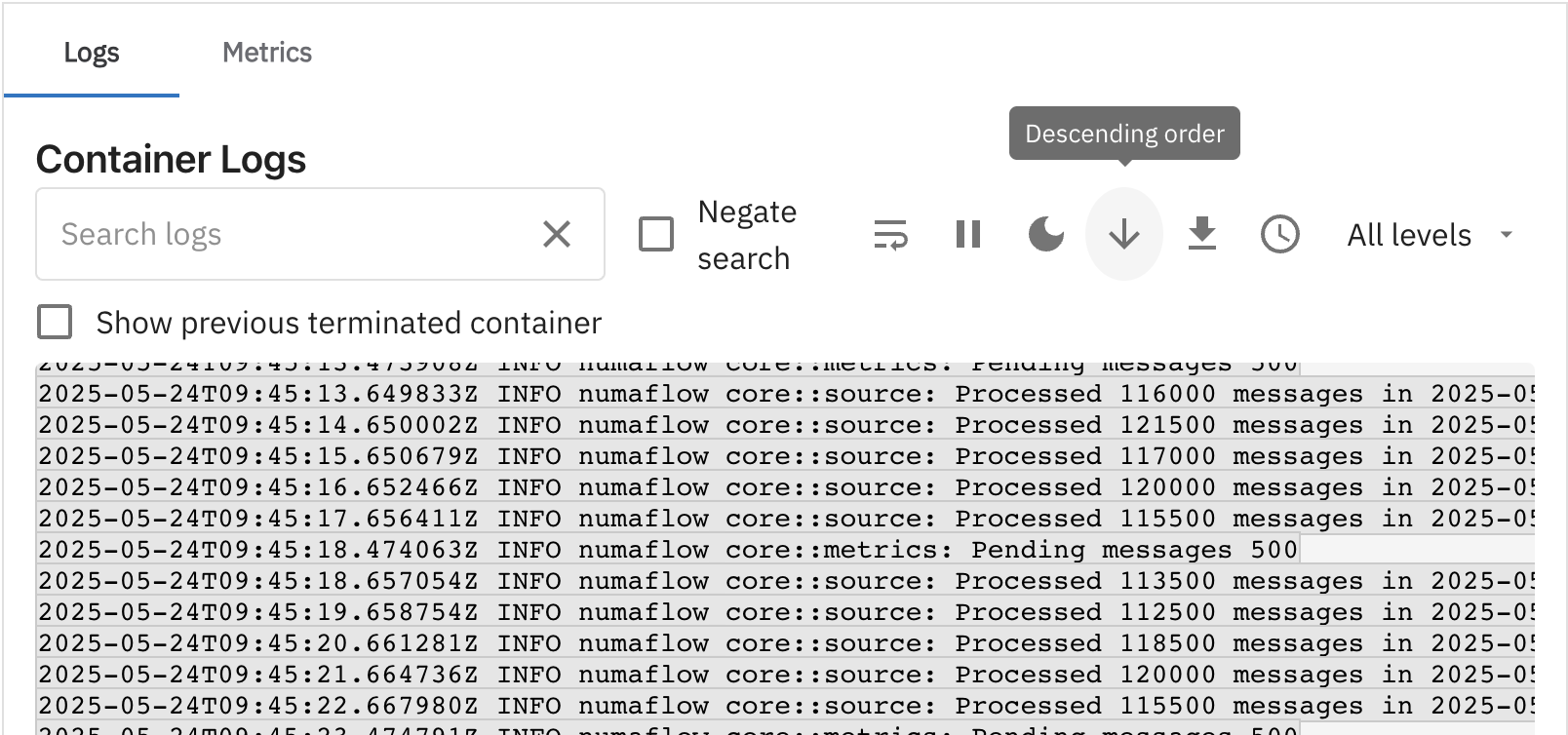
7. Ascending/Descending Order
- Switch between ascending and descending order of log timestamps for easier navigation.
8. Download Logs
- Download the last 1000 logs for offline analysis.
9. Add/Remove Timestamps
- Toggle timestamps in the logs based on your requirements.
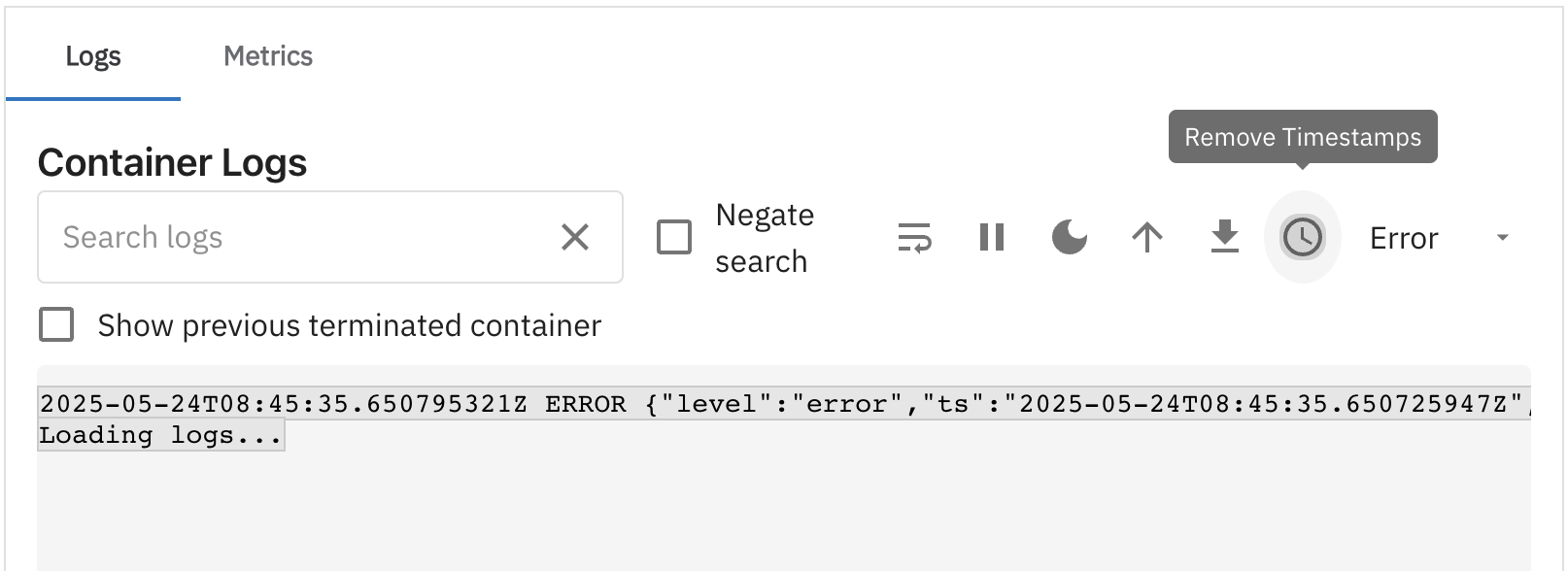
10. Level-Based Filtering
- Filter logs by log levels such as:
- Info
- Error
- Warn
- Debug